
Tips for constructing GREP searches
Here are some tips for constructing GREP expressions.
Many searches under the GREP tab are similar to those under the Text tab, but be aware that you need to insert different codes depending on which tab you’re using. In general, the Text tab metacharacters begin with a ^ (such as ^t for a tab) and GREP tab metacharacters begin with a \ (such as \t for a tab). However, not all metacharacters follow this rule. For example, a paragraph return is ^p in the Text tab and \r in the GREP tab. For a list of the metacharacters used for the Text and GREP tabs, see Metacharacters for searching.
To search for a character that has symbolic meaning in GREP, enter a backslash (\) before the character to indicate that the character that follows is literal. For example, a period ( . ) searches for any character in a GREP search; to search for an actual period, enter “\.”
Save the GREP search as a query if you intend to run it often or share it with someone else. (See Find/change items using queries.)
Use parentheses to divide your search into subexpressions. For example, if you want to search for “cat” or “cot,” you can use the c(a|o)t string. Parentheses are especially useful to identify groupings. For example, searching for “the (cat) and the (dog)” identifies “cat” as Found Text 1 and “dog” as Found Text 2. You can use the Found Text expressions (such as $1 for Found Text 1) to change only part of the found text.
GREP search examples
Follow these examples to learn how to take advantage of GREP expressions.
Example 1: Finding text within quotation marks
Suppose you want to search for any word enclosed in quotation marks (such as “Spain”), and you want to remove the quotation marks and apply a style to the word (so that it becomes Spain instead of “Spain”). The expression (")(\w+)(") includes three groupings, as indicated by parentheses ( ). The first and third groupings search for any quotation mark, and the second grouping searches for one or more word characters.
You can use the Found Text expressions to refer to these groupings. For example, $0 refers to all found text, and $2 refers to only the second grouping. By inserting $2 in the Change To field and specifying a character style in the Change Format field, you can search for a word within quotation marks, and then replace the word with a character style. Because only $2 is specified, the $1 and $3 groupings are removed. (Specifying $0 or $1$2$3 in the Change To field would apply the character style to the quotation marks as well.)
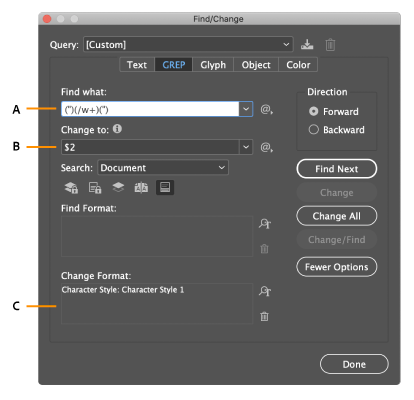
GREP example
A. Finds all word characters enclosed in quotation marks B. The character style is applied to the second grouping (the word) while the first and third groupings (open and close quotes) are removed C. Character style specified
This example searches only for single words enclosed in quotation marks. If you want to search for phrases enclosed in parentheses, add wildcard expressions, such as (\s*.*\w*\d*), which looks for spaces, characters, word characters, and digits.
Example 2: Phone numbers
InDesign includes a number of search presets that you can choose from the Queries menu. For example, you can choose the Phone Number Conversion query, which looks like this:
\(?(\d\d\d)\)?[-. ]?(\d\d\d)[-. ]?(\d\d\d\d)
Phone numbers in the United States can appear in a variety of formats, such as 206-555-3982, (206) 555-3982, 206.555.3982, and 206 555 3982. This string looks for any of these variations. The first three digits (\d\d\d) of the phone number may or may not be enclosed in parentheses, so a question mark appears after the parentheses: \(? and \)?. Note that the backslash \ indicates that the actual parenthesis is being searched for and that it’s not part of a subexpression. The brackets [ ] locate any character within them, so in this case, [-. ] finds either a hyphen, a period, or a space. The question mark after the brackets indicate that the items within it are optional in the search. Finally, the digits are enclosed in parentheses, which signify groupings that can be referred to in the Change To field.
You can edit the grouping references in the Change To field to suit your needs. For example, you could use these expressions:
206.555.3982 = $1.$2.$3
206-555-3982 = $1-$2-$3
(206) 555-3982 = ($1) $2-$3
206 555 3982 = $1 $2 $3
Additional GREP examples
Experiment with the examples in this table to learn more about GREP searches.
Expression | Search string | Sample text | Matches (in bold) |
|---|---|---|---|
Class of characters [ ] | [abc] Finds the letter a, b, or c. | Maria cuenta bien. | Mariacuentabien. |
Beginning of paragraph ^ | ^~_.+ This searches the beginning of the paragraph (^) for an em dash (~_) followed by any character ( . ) one or more times (+). | “We saw—or at least we think we saw—a purple cow.” —Konrad Yoes | “We saw—or at least we think we saw—a purple cow.” —Konrad Yoes |
Negative lookahead (?!pattern) | InDesign (?!CS.*?) The negative lookahead matches the search string only if it is not followed by the specified pattern. | InDesign, InDesign 2.0, InDesign CS, and InDesign CS2 | InDesign, InDesign 2.0, InDesign CS, and InDesign CS2 |
Positive lookahead (?=pattern) | InDesign (?=CS.*?) The positive lookahead matches the search string only if it is followed by the specified pattern. Use similar patterns for negative lookbehinds (?<!pattern) and positive lookbehinds (?<=pattern). | InDesign, InDesign 2.0, InDesign CS, and InDesign CS2 | InDesign, InDesign 2.0, InDesign CS, and InDesign CS2 |
Groupings ( ) | (quick) (brown) (fox) | The quick brown fox jumps up and down. | The quick brown fox jumps up and down. All found text = quick brown fox; Found Text 1= quick; Found Text 2 = brown; Found Text 3= fox |
Non-marking parentheses (?:expression) | (quick) ($:brown) (fox) | The quick brown fox jumps up and down. | The quick brown fox jumps up and down. All found text = quick brown fox; Found Text 1= quick; Found Text 2 = fox |
Case-insensitive on (?i) | (?i)apple You can also use (?i:apple) | Apple apple APPLE | AppleappleAPPLE |
Case-insensitive off (?-i) | (?-i)apple | Apple apple APPLE | Apple apple APPLE |
Multiline on (?m) | (?m)^\w+ In this example, the expression looks for one or more (+) word characters (\w) at the beginning of a line (^). The (?m) expression allows all lines within the found text to be treated as separate lines. (?m)^\w matches the beginning of each paragraph. (?-m)^\w matches only the beginning of the story. | One Two Three Four Five Six Seven Eight | One Two ThreeFour Five SixSeven Eight |
Multiline off (?-m) | (?-m)^\w+ | One Two Three Four Five Six Seven Eight | One Two Three Four Five Six Seven Eight |
Single-line on (?s) | (?s)c.a The searches for any character ( . ) between the letters c and a. The (?s) expression matches any character, even if it falls on the next line. (.) matches anything other than a paragraph return. (?s)(.) matches anything, including paragraph returns. | abc abc abc abc | abc abcabc abc |
Single-line off | (?-s)c.a | abc abc abc abc | abc abc abc abc |
Repeat number of times { } | b{3} matches exactly 3 times b(3,} matches at least 3 times b{3,}? matches at least 3 times (shortest match) b{2,3} matches at least 2 times and not more than 3 b{2,3}? matches at least 2 times and not more than 3 (shortest match) | abbc abbbc abbbbc abbbbbc | abbc abbbc abbbbc abbbbbc abbc abbbc abbbbc abbbbbc abbc abbbc abbbbc abbbbbc abbc abbbc abbbbc abbbbbc abbc abbbc abbbbc abbbbbc |

