
Find and change objects
You can use the Find/Change command to find and replace the attributes and effects applied to objects, graphics frames, and text frames. For example, to give drop shadows a uniform color, transparency, and offset distance, you can use the Find/Change command to search for and replace drop shadows throughout a document.
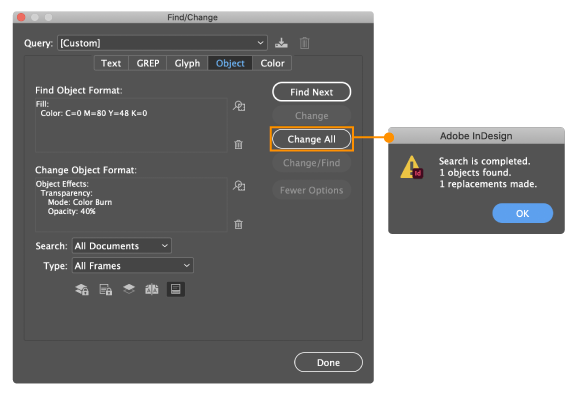
Choose Edit > Find/Change.
Click the Object tab.
Click the Find Object Format box, or click the Specify Attributes To Find icon  .
.
On the left side of the Find Object Format Options dialog box, select a type of formatting, specify the format attributes, and then click OK.
Make sure that the categories you want to search for are in the appropriate state. You can use one of three states for each Effects category: turned on, turned off, or ignored. For example, setting Drop Shadow to On includes drop shadow formatting in the search; setting Drop Shadow to Off searches for objects in which drop shadow formatting is turned off; setting Drop Shadow to Ignore leaves drop shadows out of the search.
If you want to apply formatting to the object found, click the Change Object Format box, or click the Specify Attributes To Change icon in the Change Format Settings section. Then select a type of formatting, specify the format attributes, and click OK.
Click the Find and Change buttons to format the objects.
Find and change glyphs
The Glyph section of the Find/Change dialog box is especially useful for replacing glyphs that share the same unicode value with other similar glyphs, such as alternate glyphs.
InDesign Secrets provides a clear example about finding and changing glyphs at Finding and Changing Glyphs.
Choose Edit > Find/Change.
At the bottom of the dialog box, specify a range from the Search menu, and click icons to determine whether items such as locked layers, master pages, and footnotes are included in the search.
Under Find Glyph, select the Font Family and Font Style in which the glyph is located.
The Font Family menu displays only those fonts that are applied to text in the current document. Fonts in unused styles do not appear.
Do one of the following to enter the glyph you want to find in the Glyph box:
Note:
You can use other methods to enter the glyph you want to find in the Glyph box. Select a glyph in the document window and choose Load Selected Glyph In Find from the context menu, or select a glyph in the Glyphs panel and choose Load Glyph In Find from the context menu.
Click the button beside the Glyph box, and then double-click a glyph on the panel. This panel works like the Glyphs panel.
Choose Unicode or GID/CID, and enter the code for the glyph.
Under Change Glyph, enter the replacement glyph by using the same techniques you use to enter the glyph you’re searching for.
Click Find.
To continue searching, click Find Next, Change (to change the most recently found glyph), Change All (a message indicates the total number of changes), or Change/Find (to change the current occurrence and search for the next one).
The Find/Change dialog in InDesign has two search direction buttons - Forward and Backward. As search Forward is enabled by default, you can switch to Backward to reverse the flow of the search. The new functionality helps you search strings in Text, GREP, and Glyph tabs.
Click Done.
Find and change fonts
Use the Find Font command to search for and list the fonts used throughout your document. You can then replace any fonts (except those in imported graphics) with any other fonts available on your system. You can even replace a font that’s part of a text style. Note the following:
A font name is listed once for its use in the layout and listed each time in imported graphics. For example, if you use the same font three times in the layout and three times in imported graphics, it will be listed in the Find Font dialog box four times—once for all layout instances, and three more times for each imported graphic. If fonts are not completely embedded in graphics, the font name may not be listed in the Find Font dialog box.
Find Font is not available in a Story Editor window.
The Find Font dialog box displays icons to indicate the kinds of fonts or font conditions, such as Type 1 fonts
 , imported images
  , TrueType fonts
  , OpenType fonts
  , and missing fonts
  .
.You can find and change composite fonts, but you cannot change component fonts that are part of composite fonts.
Use the Type > Find Font command to help ensure consistent output by analyzing font usage on pages and in imported graphics. To find and change specific text attributes, characters, or styles, use the Edit > Find/Change command instead.
Choose Type > Find Font.
Select one or more font names in the Fonts In Document list.
Do one of the following:
To find the first occurrence in the layout of the font selected in the list, click Find First. The text using that font moves into view. The Find First button is unavailable if the selected font is used in an imported graphic or if you selected multiple fonts in the list.
To select an imported graphic that uses a font marked in the list by an imported image icon
, click Find Graphic. The graphic also moves into view. The Find Graphic button isn’t available if the selected font is used only in the layout or if you selected multiple fonts in the Fonts In Document list.
To see details about a selected font, click More Info. To hide the details, click Less Info. The Info area is blank if you selected multiple fonts in the list.
A font may be listed as Unknown if the file of the selected graphic doesn’t supply information about it. Fonts in bitmap graphics (such as TIFF images) won’t appear in the list at all because they aren’t true characters.
To replace a font, select the new font you want to use from the Replace With list, and do one of the following:When there are no more occurrences of a font in your file, its name is removed from the Fonts In Document list.
Note:
To change fonts in imported graphics, use the program that originally exported the graphic, and then replace the graphic or update the link using the Links panel.
To change just one occurrence of the selected font, click Change. This option is not available if multiple fonts are selected.
To change the font in that occurrence, and then find the next instance, click Change/Find. This option is not available if multiple fonts are selected.
To change all instances of the font selected in the list, click Change All. If you want any paragraph or character style that includes the font being searched for to be redefined, select Redefine Style When Changing All.
If you clicked Change, click Find Next to locate the next instance of the font.
Click Done.
You can open the Find Font dialog box while preflighting a document. In the Preflight dialog box, switch to the Fonts tab and click Find Font.
Note:
To view the system folder in which a font appears, select the font in the Find Font dialog box and choose Reveal In Explorer (Windows) or Reveal In Finder (Mac OS).
Find/change items using queriesYou can find and change text, objects, and glyphs by using or constructing a query. A query is a defined find-and-change operation. InDesign offers several preset queries for changing punctuation formats and other useful actions, such as changing telephone number formats. By saving a query you constructed, you can run it again and share it with others.
Search using queries
Choose Edit > Find/Change.
Choose a query from the Query list.
The queries are grouped by type.
Specify a range to search on the Search menu.
The search range is not stored with the query.
Click Find.
To continue searching, click Find Next, Change (to change the most recently found text or punctuation mark), Change All (a message indicates the total number of changes), or Change/Find (to change text or punctuation marks and continue your search).
After you select a search query, you can adjust the settings to fine-tune your search.
Save queries
Save a query in the Find/Change dialog box if you want to run it again or share it with others. The names of queries you save appear in the Query list in the Find/Change dialog box.
Choose Edit > Find/Change
.Select Text, GREP, or a different tab to undertake the search you want.
Below the Search menu, click icons to determine whether items such as locked layers, master pages, and footnotes are included in the search.
These items are included in the saved query. However, the range of the search isn’t saved with the query.
Define the Find What and Change To fields. (See Metacharacters for searching and Search using GREP expressions.)
Click the Save Query button in the Find/Change dialog box and enter a name for the query.
If you use the name of an existing query, you are asked to replace it. Click Yes if you want to update the existing query.

